Beta PUBLIC BETA NOW OPEN — Gorgon Scout is free to download. Download for Windows →
Setup Guide

Run Scans by Asking Claude

Gorgon Scout ships with a built-in connector for Claude Desktop. Sign in to Scout once, then close it and drive professional web-application security scans straight from a Claude chat. Works on any Claude plan, including the free plan.

How It Works

You sign in to Gorgon Scout one time. Your session is stored securely on your PC, so the connector keeps working with Scout closed. From then on, Claude does the driving: it builds the target profile, runs the scan, and hands back a Word report.

🔑

1. Sign in to Scout

Launch Gorgon Scout, create your Gorgon Cyber account or sign in, and start your free trial. This is the only time you need the app open.

2. Quit Scout

Close the Scout window. Your sign-in persists on the machine, so Claude can still run scans for you without the app running.

💬

3. Ask Claude

Open Claude Desktop and ask it to scan a site in plain language. Claude uses the Gorgon Scout connector on your PC to do the work.

Step by Step

Start to first scan in a few minutes.

  1. Install Gorgon Scout. Run the installer and leave the Claude AI Integration connector enabled. Download it here if you have not already.
  2. Launch Scout and sign in. Create your Gorgon Cyber account (or sign in) and start your 30-day free trial. The free trial covers up to two target applications.
  3. Quit Gorgon Scout. Close the app completely. You do not need it open for Claude to run scans; your signed-in session is kept securely on your PC.
  4. Fully restart Claude Desktop. Quit Claude from its system-tray icon (choose Quit, not just close the window) and reopen it, so it loads the Gorgon Scout connector.
  5. Ask Claude to run a scan. Type a request like the example below. A Chromium window opens while Claude crawls the site; you can watch it but do not need to touch it unless Scout asks you to sign in to the target.
  6. Read the results. When the scan finishes, Claude summarises the findings by severity and gives you the path to a Word report, saved under Documents → Scout Reports.

An Example Prompt

Here is a prompt you can paste straight into Claude. It scans ginandjuice.shop, a deliberately vulnerable demo application published by PortSwigger specifically for safe, legal security testing.

Pentest https://ginandjuice.shop with Gorgon Scout. It is a deliberately vulnerable site and I authorize the testing of that site. Scan it and summarize.

The two things that matter in any prompt: the target URL and a clear statement that you authorise testing that host. The connector will not scan a target you have not named as authorised. Only ever point it at applications you own or have explicit written permission to test.

While the Scan Runs

A scan typically takes 5 to 30 minutes. Claude checks progress every 30 seconds or so and stays quiet in between, then gives you one summary at the end. A couple of things are completely normal while you wait.

A browser window opens

A Chromium window appears while Claude crawls the site. You can watch it, but you do not need to touch it unless Scout asks you to sign in to the target application.

“Continue” is normal — just click it

Because a scan involves many progress checks, Claude will often pause with “Claude reached its tool-use limit for this turn” and a Continue button. This is expected, especially on the free plan. Simply click Continue and Claude carries on watching the scan. It may pause this way several times during a long scan.

Let it finish

Keep clicking Continue whenever it pauses. When the scan completes, Claude posts a single findings summary by severity and the path to your Word report.

You can check in any time

You do not have to wait for the final summary. Ask Claude for an update whenever you like, for example: What phase is the scan in, and any findings so far? Claude will report the latest progress without disturbing the scan.

And if Claude is quietly polling and you want to break in, the Stop button is safe: it only ends Claude’s current turn, not the scan. The scan keeps running on your PC. Just type what’s the current scan status? and Claude picks up exactly where it left off. The scan is only cancelled if you explicitly ask Claude to cancel it, or if you fully quit Claude Desktop.

Gorgon Scout Not Showing Up as a Connector?

If Claude does not list Gorgon Scout in its tools, work through these in order. The most common fix is simply a full restart of Claude Desktop.

Fully quit Claude

Claude only loads connectors at startup. Right-click the Claude icon in the system tray (bottom-right of the taskbar), choose Quit, then reopen Claude. Closing just the window is not enough.

Update Gorgon Scout

Make sure you are on the latest version. Earlier installers could register the connector in a location the Microsoft Store edition of Claude does not read. Download the latest installer and run it again.

Confirm the connector was enabled

Re-run the installer and check the Claude AI Integration step has the connector ticked. If Claude was not detected during your first install, the box may have been left unchecked.

Check Claude's tools menu

In a chat, open the tools or connectors menu (the plug or tool icon near the message box). Gorgon Scout and its tools should be listed there once loaded.

Restart after install

If you installed while Claude was open, the connector will not appear until the next full restart. Quit from the tray and reopen, then check again.

Still stuck?

Reinstall Gorgon Scout, sign in once, and fully restart Claude. If the connector still does not appear, contact us and we will help you get it running.

Plain Language

What You Can Ask

Once the connector is loaded, you talk to Claude normally. It maps your request onto Scout's workflow: profile creation, crawling and recording, the scan itself, and the report.

  • “Scan my web app at staging.example.com and summarise the findings”
  • “Build a profile for shop.example.com, then run an active scan”
  • “Check my Gorgon Scout account status and trial limits”
  • “Run the scan, then give me the Word report path”

The full scan pipeline runs without spending any AI tokens. Optional AI analysis is offered separately, and Claude will always ask before spending tokens.
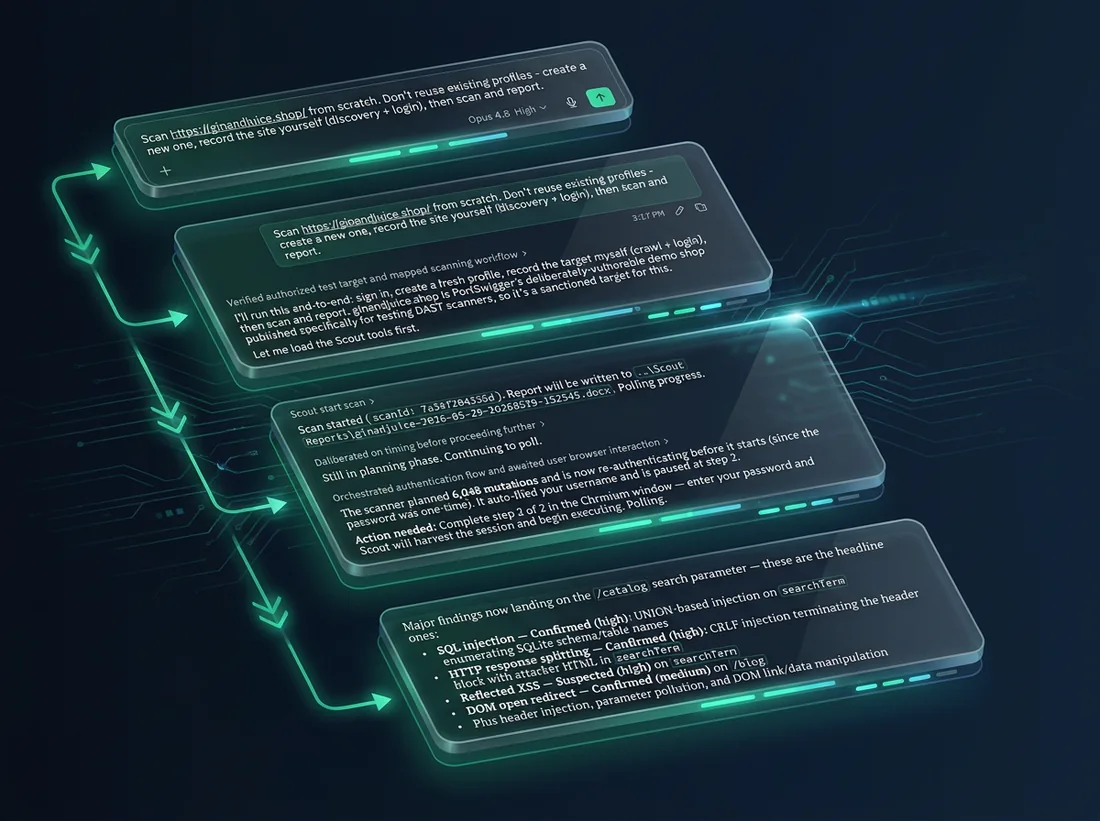
Claude Desktop driving a Gorgon Scout scan via the built-in connector

Ready to Try It

Download Gorgon Scout, sign in once, and let Claude run your first scan.

Download for Windows Back to Gorgon Scout